 |
| Supported server operating systems |
5/11/2023

.NET Framework system requirements (Clients)
Source: Microsoft Website
 |
| Supported client operating systems |
12/31/2022

10/08/2021
Conditional Formatting in Asp .Net Web Form Gridview
<asp:TemplateField HeaderText="Status" SortExpression="Status">
     <EditItemTemplate>
        <asp:Label ID="lblStatus" runat="server" Text='<%# Eval("Status") %>'></asp:Label>
     </EditItemTemplate>
     <ItemTemplate>
        <asp:Label ID="lblStatus" runat="server" Text='<%# Bind("Status") %>' ForeColor='<%# ((string)Eval("Status")).ToLower().Equals("open") ? System.Drawing.Color.Green : System.Drawing.Color.Red %>'></asp:Label>
     </ItemTemplate>
 </asp:TemplateField>

7/20/2021
C# Regular Expression - Windows Form Application (Username Validation)
 |
| C# Regular Expression - Windows Form Application (Username Validation) |
   private void txtUsername_TextChanged(object sender, EventArgs e)
        {
            if (IsValidUsername(txtUsername.Text))
            {
                lblMsg.ForeColor = System.Drawing.Color.Green;
                lblMsg.Text = "Valid Username";
            }
            else
            {
                lblMsg.ForeColor = System.Drawing.Color.Red;
                lblMsg.Text = "Invalid Username!";
            }
        }
        public static bool IsValidUsername(string username)
        {
            //Username starts with a letter, allow letter or number, length between 7 to 12.
            string pattern;
            pattern = @"^[a-zA-Z][a-zA-Z0-9]{6,11}$";
            Regex regex = new Regex(pattern);
            return regex.IsMatch(username);
        }
12/31/2020

12/14/2019
How To Display Selected CheckedListBox Items In TextBox Separated By Comma In C#
 |
| how to display selected checkedlistbox items in textbox separated by comma in c# |
private void checkedListBox1_SelectedIndexChanged(object sender, EventArgs e)
        {
            string values = "";
            foreach (object item in checkedListBox1.CheckedItems)
            {
                if (values == "")
                    values = item.ToString();
                else values += "," + item.ToString();

            }
            textBox1.Text = values;
        }
11/04/2019
Python Pattern
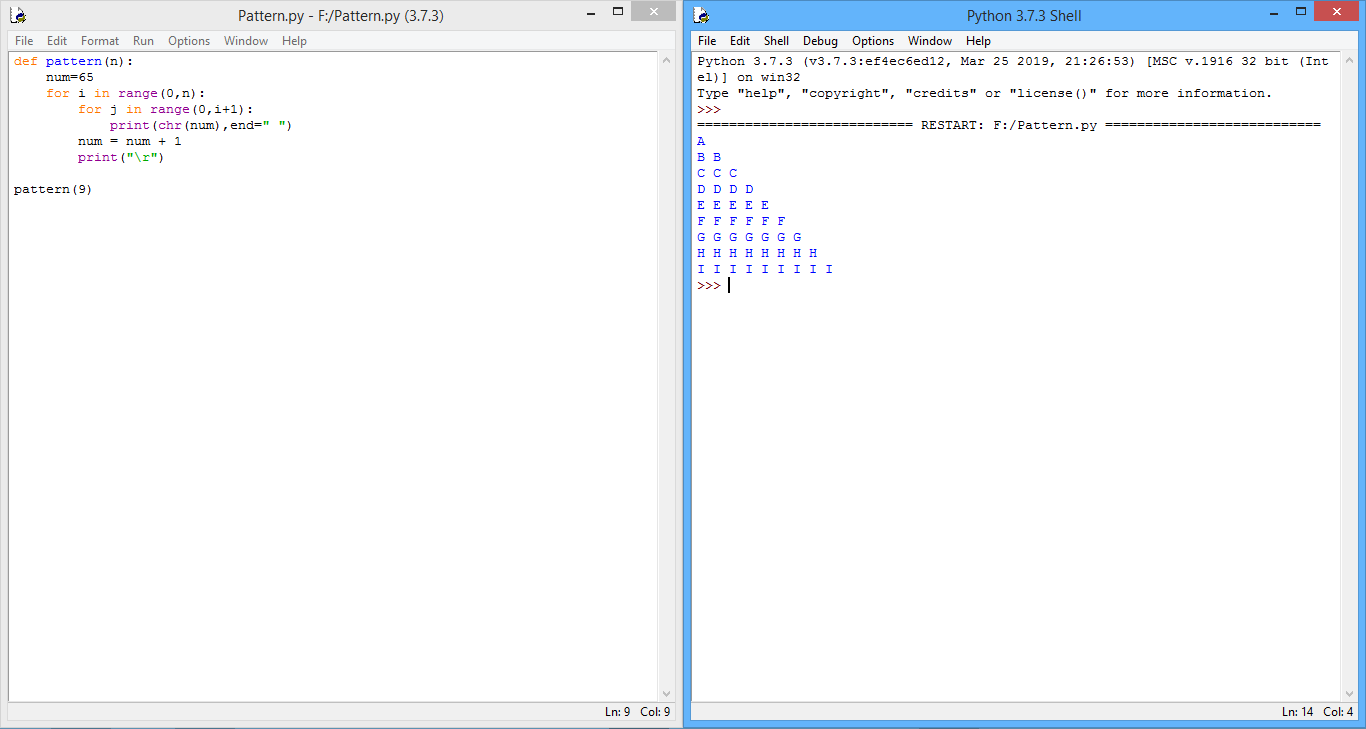
def pattern(n):
    num=65
    for i in range(0,n):
        for j in range(0,i+1):
            print(chr(num),end=" ")
        num = num + 1
        print("\r")

pattern(9)
7/01/2019
Windows Logo (Python)
 |
| Windows Logo (Python) |
from turtle import *
speed(1)
bgcolor('black')
penup()
goto(-50,60)
pendown()
color("#00adef")
begin_fill()
goto(100,100)
goto(100,-100)
goto(-50,-60)

goto(-50,60)
end_fill()

color("black")
goto(15,100)
color("black")
width(10)
goto(15,-100)
penup()
goto(100,0)
pendown()
goto(-100,0)
done()
6/30/2019
Stopwatch C# windows form
 |
| Stopwatch |
 |
| Stopwatch Design Foorm |
1 2 3 4 5 6 7 8 9 10 11 12 13 14 15 16 17 18 19 20 21 22 23 24 25 26 27 28 29 30 31 32 33 34 35 36 37 38 39 40 41 42 43 44 45 46 47 48 49 50 51 52 53 54 55 56 57 58 59 60 61 62 63 64 65 66 67 68 69 70 71 72 73 74 75 76 77 78 79 80 81 82 83 84 85 86 87 88 89 90 91 92 93 94 95 96 97 98 99 100 101 102 103 104 105 106 107 108 109 110 111 112 113 114 115 116 117 118 119 120 121 122 123 124 125 126 | using System; using System.Diagnostics; using System.Windows.Forms; namespace StopwatchProject { public partial class frmStopwatch : Form { private Stopwatch mainStopwatch; private Stopwatch smallStopwatch; // New stopwatch for small timer private Timer mainTimer; private Timer smallTimer; // New timer for small stopwatch private int lapCount; private TimeSpan lastLapTime; public frmStopwatch() { InitializeComponent(); mainStopwatch = new Stopwatch(); smallStopwatch = new Stopwatch(); // Initialize small stopwatch mainTimer = new Timer(); smallTimer = new Timer(); // Initialize small timer mainTimer.Interval = 100; // Update every 100ms smallTimer.Interval = 100; // Update every 100ms for small timer mainTimer.Tick += MainTimer_Tick; smallTimer.Tick += SmallTimer_Tick; // Event for small timer lblTime.Text = "00:00:00.00"; // Initial time for main stopwatch lblSmallTime.Text = "00:00:00.00"; // Initial time for small stopwatch lapCount = 0; // Initialize lap count lblLapCount.Text = "Lap Count: 0"; // Initialize lap count display lastLapTime = TimeSpan.Zero; // Initialize last lap time // Set up DataGridView columns dataGridViewLaps.Columns.Add("LapNumber", "Lap"); dataGridViewLaps.Columns.Add("LapTime", "Lap Times"); dataGridViewLaps.Columns.Add("OverallTime", "Overall Time"); dataGridViewLaps.Columns[0].AutoSizeMode = DataGridViewAutoSizeColumnMode.DisplayedCells; dataGridViewLaps.Columns[1].AutoSizeMode = DataGridViewAutoSizeColumnMode.DisplayedCells; dataGridViewLaps.Columns[2].AutoSizeMode = DataGridViewAutoSizeColumnMode.Fill; dataGridViewLaps.MultiSelect = false; dataGridViewLaps.AutoSizeRowsMode = DataGridViewAutoSizeRowsMode.None; dataGridViewLaps.AllowUserToResizeRows = false; } private void MainTimer_Tick(object sender, EventArgs e) { lblTime.Text = FormatTime(mainStopwatch.Elapsed); } private void SmallTimer_Tick(object sender, EventArgs e) { lblSmallTime.Text = FormatTime(smallStopwatch.Elapsed); // Update small stopwatch display } private string FormatTime(TimeSpan timeSpan) { return string.Format("{0:00}:{1:00}:{2:00}.{3:00}", timeSpan.Hours, timeSpan.Minutes, timeSpan.Seconds, timeSpan.Milliseconds / 10); } private void btnStartStop_Click(object sender, EventArgs e) { if (mainStopwatch.IsRunning) { mainStopwatch.Stop(); mainTimer.Stop(); smallStopwatch.Stop(); smallTimer.Stop(); btnStartStop.Text = "Start"; } else { mainStopwatch.Start(); mainTimer.Start(); smallStopwatch.Start(); smallTimer.Start(); btnStartStop.Text = "Stop"; } } private void btnReset_Click(object sender, EventArgs e) { mainStopwatch.Reset(); lblTime.Text = "00:00:00.00"; dataGridViewLaps.Rows.Clear(); // Clear the DataGridView lapCount = 0; // Reset lap count lblLapCount.Text = "Lap Count: 0"; // Update lap count display btnStartStop.Text = "Start"; mainTimer.Stop(); lastLapTime = TimeSpan.Zero; // Reset last lap time // Reset small stopwatch smallStopwatch.Reset(); lblSmallTime.Text = "00:00:00.00"; // Reset small stopwatch display smallTimer.Stop(); // Stop small timer lblSmallTime.Visible = false; } private void btnLap_Click(object sender, EventArgs e) { if (mainStopwatch.IsRunning) { lapCount++; // Increment lap count TimeSpan currentLapTime = mainStopwatch.Elapsed - lastLapTime; // Calculate lap time lastLapTime = mainStopwatch.Elapsed; // Update last lap time string lapTime = FormatTime(currentLapTime); // Get the formatted lap time string overallTime = FormatTime(mainStopwatch.Elapsed); // Get the overall time // Add a new row to the DataGridView dataGridViewLaps.Rows.Insert(0, lapCount, lapTime, overallTime); dataGridViewLaps.ClearSelection(); lblLapCount.Text = $"Lap Count: {lapCount}"; // Update lap count display // Reset and start the small stopwatch smallStopwatch.Reset(); smallStopwatch.Start(); smallTimer.Start(); // Start small timer lblSmallTime.Visible=true; } } } } |
4/05/2019
Python (Turtle Library)
 |
| Python Program (Turtle Library) |
import turtle
t=turtle.Turtle()
s=turtle.Screen()
s.bgcolor('white')
t.pencolor('red')
t.speed(0) #change the speed value
for i in range(45):
    t.circle(190-1,90)
    t.lt(98)
    t.circle(190-1,90)
    t.lt(18)
4/03/2019
Colorful Hexagon in python
 |
| Colorful Hexagon in python |
import turtle
colors=["green","orange","red","blue","purple","yellow"]
t=turtle.pen()
turtle.bgcolor("black")
turtle.speed(0)
for i in range(250):
    turtle.pencolor(colors[i%6])
    turtle.width(i//100+1)
    turtle.forward(i)
    turtle.left(59)
2/17/2019
List Drives using Command Prompt in Windows 10
Open command prompt in "Run as administrator" mode and then type the command "diskpart" and hit enter and in the next line type "list volume" and hit enter again to display all drives as shown in the following picture.
 |
| List Drives using Command Prompt in Windows 10 |
 |
| List Drives using Command Prompt in Windows 10 |
1/01/2019

11/02/2018


10/30/2018


Turn System Icons On or Off (Hide notification area icons in Windows 10)
 |
| Right click on your desktop and select Personalize |
 |
| On the left hand side click on "Taskbar" and the scroll all the way to Notification area and then click on "Select which icons appear on the taskbar" |
 |
| At this point you can choose which icon to be appeared on the taskbar by clicking off or on buttons |
 |
| If you turn clock icon off you will see it wont appear on the notification area |